
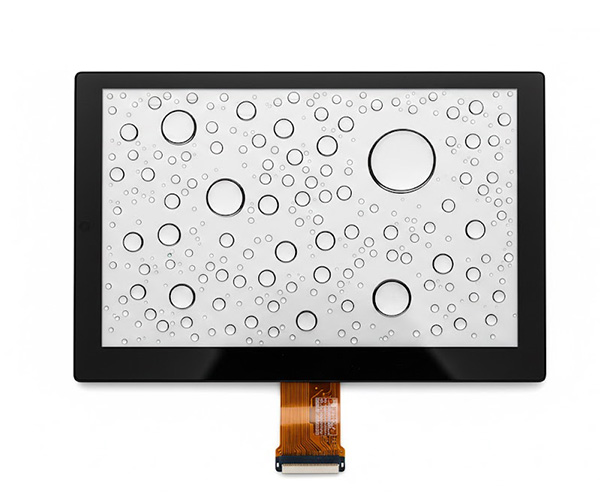
Selecting the ideal ESP Touchscreen for your hardware project requires a careful balance of display resolution, interface compatibility, and environmental durability to ensure seamless performance in your specific application. Many engineers struggle with screen lag or touch inaccuracy after weeks of developing complex UI code. This mismatch between software ambition and hardware capability can delay product launches and frustrate end-users who expect a fluid experience. By prioritizing a factory-direct solution with validated specifications, you can eliminate integration risks and deliver a professional-grade interface from the very first prototype.
Why choose an ESP Touchscreen for your project?
You should select an ESP Touchscreen because it offers a highly integrated, low-power solution that combines wireless connectivity with a visual interface, eliminating the need for external controllers. Utilizing an ESP Touchscreen allows developers to consolidate their Bill of Materials while maintaining high performance. This approach streamlines the supply chain by reducing the number of individual components required for a functional HMI.
What are the primary benefits for developers?
When you integrate this technology into your design, you gain several advantages that simplify the development lifecycle. Look:
- Integrated Wireless: No need for additional modules to handle IoT connectivity.
- Rich Library Support: You can leverage extensive open-source graphics libraries like LVGL.
- Cost Efficiency: Consolidating the MCU and display controller reduces assembly costs.
How does it simplify your hardware design?
The beauty of these modules lies in their “all-in-one” nature which simplifies complex routing. Think about it:
- Reduced EMI: Fewer traces between the processor and display minimize interference.
- Space Saving: Compact form factors allow for smaller final product enclosures.
- Standardized Pinouts: Pre-configured modules reduce the time spent on hardware validation.
Key TakeawayChoosing an ESP-based display solution allows you to focus on user experience rather than troubleshooting basic hardware communication issues.
| Feature | Advantage | Impact on Project | |
|---|---|---|---|
| Connectivity | Built-in WiFi/Bluetooth | Faster IoT deployment | |
| Software | LVGL Compatibility | Professional UI appearance | |
| Form Factor | Compact Integration | Smaller device footprint |
Analysis shows that hardware consolidation is the primary driver for reducing time-to-market in IoT projects.
Which ESP Touchscreen technology fits your needs?
Determining the best ESP Touchscreen technology depends on whether your operating environment requires the high sensitivity of capacitive sensors or the rugged capability of resistive panels. You must evaluate the user interaction model to ensure the hardware matches the physical demands of the workspace. Failure to choose the correct sensor type often leads to poor user satisfaction or premature hardware failure.
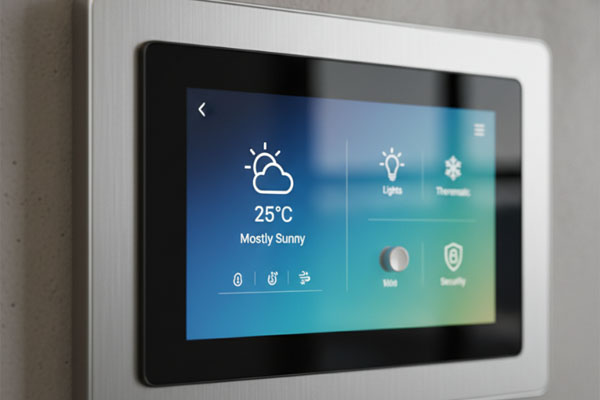
Should you choose capacitive or resistive sensors?
You need to evaluate how your users will interact with the device to make the right call. Here is the deal:
- Capacitive: Best for consumer-grade projects where multi-touch and high clarity are essential.
- Resistive: Ideal for industrial settings where operators wear gloves or work in wet conditions.
- Hybrid Needs: Some environments require high clarity but still need impact resistance.
How does environmental glass impact durability?
The top layer of your display is the first line of defense against the elements. You should consider chemically strengthened glass if your device will be handled frequently. Think about it:
- Surface Hardness: Glass covers provide superior scratch resistance compared to plastic.
- Anti-Glare: Specialized coatings improve readability in bright indoor settings.
- Thickness Options: Thicker glass increases impact resistance for public-facing kiosks.
Key TakeawayMatch your touch technology to the user’s environment to prevent “ghost touches” or lack of response in critical moments.
| Criteria | Capacitive | Resistive | |
|---|---|---|---|
| Touch Type | Finger only (usually) | Any object/Gloved hand | |
| Clarity | High (90%+) | Moderate (75-80%) | |
| Longevity | High Scratch Resistance | High Pressure Tolerance |
Capacitive technology is generally superior for modern UI applications, while resistive remains the standard for heavy industrial use.
What size ESP Touchscreen is best for your UI?
The ideal size for an ESP Touchscreen typically ranges from 3.5 inches to 7 inches, providing enough screen real estate for complex controls without exceeding processing limits. Choosing a size within this range ensures that the ESP32 chip can refresh the frame buffer efficiently. Larger screens are possible but require more sophisticated memory management strategies during the software phase.
Are standard 3.5-inch displays large enough?
For most handheld devices, a 3.5-inch screen offers the perfect balance of portability and readability. Look:
- Ergonomics: Fits comfortably in the palm of your hand for mobile operations.
- Resolution: Usually provides 320×480 pixels, which is sharp for its physical size.
- Power: Draws less current, which is critical for extending battery life in field equipment.
When should you consider 7-inch widescreen options?
If you are designing a smart home hub or an industrial control panel, you should scale up to a larger format. But that’s not all:
- Target Size: Larger screens allow for bigger touch buttons, reducing user input errors.
- Data Density: You can display more graphs and sensor data simultaneously on one screen.
- Visual Impact: Widescreen displays provide a more premium feel for high-end consumer products.
Key TakeawaySelect a screen size that accommodates your most complex UI screen without requiring the user to struggle with small buttons.
| Application | Recommended Size | Typical Resolution | |
|---|---|---|---|
| Handheld Remote | 3.5″ – 4.3″ | 320×480 / 480×272 | |
| Smart Home Panel | 5.0″ – 7.0″ | 800×480 | |
| Industrial HMI | 7.0″ – 10.1″ | 1024×600 |
Selecting a resolution that matches the MCU’s throughput is the most effective way to maintain a high frame rate.
How do you check ESP Touchscreen interface compatibility?
You can verify ESP Touchscreen interface compatibility by checking for I2C, SPI, or RGB parallel support within your specific ESP32 development framework. Interface selection directly impacts the speed at which graphics are drawn on the screen. Selecting an incompatible interface can lead to low frame rates or completely unresponsive displays.
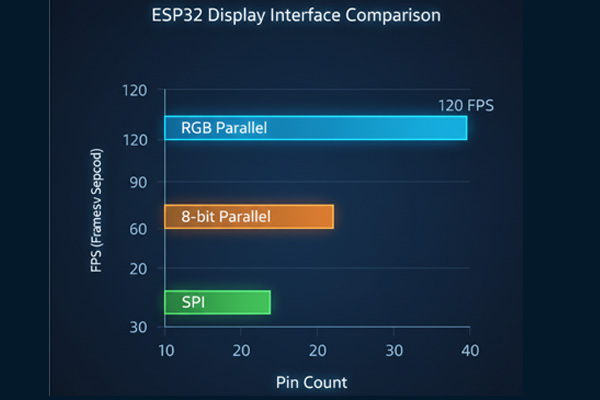
Which communication protocol is fastest for your UI?
Speed is the name of the game when you want 30 frames per second animations for a smooth experience. Here is the deal:
- SPI: Easy to wire and uses few pins but can be slow for large screens.
- RGB Parallel: Offers the highest bandwidth for smooth video and complex transitions.
- I2C: Primarily used for the touch data layer rather than the display pixels themselves.
Does your controller support high-resolution RGB?
Before you commit to a high-definition panel, you must check your available pin count on the MCU. Think about it:
- GPIO Mapping: Parallel interfaces require many pins, potentially limiting other sensor connections.
- Memory Buffer: Ensure your ESP32 model has enough PSRAM to handle the display buffer.
- Driver Support: Verify that your software library includes a driver for the specific display IC.
Key TakeawayAlways match the display’s interface bandwidth to your UI’s animation complexity to avoid screen tearing or lag.
| Interface | Pin Count | Speed Potential | Best Use Case | |
|---|---|---|---|---|
| SPI | 4-5 Pins | Medium | Small displays, static UI | |
| 8-bit Parallel | 10-12 Pins | High | Medium screens, 2D gaming | |
| RGB 16/24-bit | 20+ Pins | Very High | Large screens, smooth video |
Optimizing the interface choice prevents hardware bottlenecks that software improvements cannot fix.
What brightness level does your ESP Touchscreen require?
Your ESP Touchscreen needs a brightness level of at least 300 nits for standard indoor use to remain legible under artificial lighting. If the device is intended for outdoor operation, you must specify a high-brightness panel capable of reaching 800 to 1000 nits. Ignoring brightness requirements often renders a device useless in bright environments, regardless of its software quality.
Why does nit count matter for outdoor visibility?
If you have ever tried to read a phone screen at the beach, you know exactly why brightness is vital. Look:
- Standard (300 nits): Perfect for office or home environments with controlled lighting.
- Enhanced (500 nits): Good for brightly lit retail or lab spaces where glare is common.
- High Brightness (1000 nits): Essential for automotive or outdoor kiosks to fight direct sunlight.
How does optical bonding reduce screen glare?
There is a secret to making screens readable without just cranking up the power consumption of the backlight. Think about it:
- Air Gap Removal: Optical bonding fills the gap between the touch layer and LCD with resin.
- Reflection Reduction: This process significantly reduces internal reflections, improving clarity.
- Contrast Enhancement: It makes blacks appear deeper and colors more vibrant even in bright light.
Key TakeawayInvesting in higher brightness or optical bonding up front prevents user complaints about unreadable screens in real-world lighting.
| Environment | Required Nits | Visibility Level | |
|---|---|---|---|
| Dim Room | 200 – 250 | Excellent | |
| Bright Office | 300 – 450 | Good | |
| Direct Sunlight | 800 – 1000+ | Clear |
Higher brightness levels significantly increase power consumption, so you must balance visibility with your energy budget.
Is the ESP Touchscreen durable enough for industrial use?
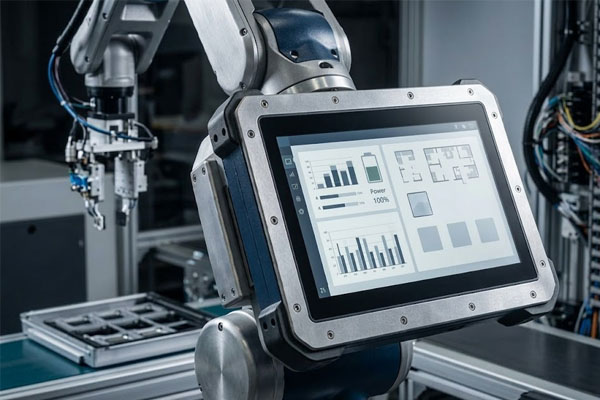
An industrial-grade ESP Touchscreen is specifically engineered with chemically strengthened cover glass and components that withstand a wide operating temperature range. These units are built to survive the vibrations and electrical noise typically found in factory environments. Standard consumer screens often fail in these conditions due to thermal stress or physical impact.
What is the impact of extreme temperature on touch?
You must consider how your device will behave in a freezing warehouse or a hot engine room. Here is the deal:
- Low Temp: Can slow down liquid crystal response, making the screen look blurry or ghosted.
- High Temp: May cause the backlight to dim or the touch controller to experience calibration drift.
- Component Stability: Industrial modules use wide-temp electrolytes to ensure long-term reliability.
How to prevent chemical damage to your screens?
In medical or factory settings, you should assume the screen will be wiped down with harsh disinfectants. Think about it:
- Glass Selection: Standard plastic covers will cloud or crack when exposed to alcohol or bleach.
- Specialized Coatings: Opt for glass panels with anti-chemical coatings to maintain clarity.
- IP65 Sealing: Ensure the bezel design prevents liquids from seeping into the internal electronics.
Key TakeawayIndustrial certification is a guarantee that your interface won’t fail when the operating environment gets tough.
| Feature | Industrial Spec | Benefit | |
|---|---|---|---|
| Temp Range | -20°C to +70°C | All-weather reliability | |
| Surface Hardness | 6H – 7H | Scratch and impact resistance | |
| Chemical Resistance | High | Withstands frequent cleaning |
Ruggedized hardware is essential for any project where downtime results in significant financial or operational loss.
How to power your ESP Touchscreen efficiently?
Powering an ESP Touchscreen efficiently requires a stable voltage rail capable of handling sudden current spikes from the WiFi and backlight. You need to design a power management circuit that minimizes heat while providing consistent energy to the display. Poor power design is the leading cause of system resets and flickering screens in embedded projects.
Can you use battery power for displays?
You certainly can, but you need a smart power management strategy to ensure reasonable runtimes. Look:
- Backlight Control: Implement PWM dimming to reduce power when the device is not being touched.
- Efficient Regulators: Use a high-efficiency buck converter to minimize energy loss as heat.
- Sleep Modes: Ensure your display controller supports a low-power mode when the MCU is sleeping.
How to optimize sleep modes for energy?
Saving power is all about knowing exactly when to turn off non-essential components. Think about it:
- Deep Sleep: Use the ESP32’s deep-sleep function to power down the CPU during idle periods.
- Touch Wake: Configure the touch controller to wake the MCU only when a physical touch is detected.
- State Preservation: Store essential UI states in RTC memory to resume quickly without a full reboot.
Key TakeawayDesign your power circuit for peak loads (display + WiFi) to prevent brownouts and system resets during operation.
| Component | Active Current | Sleep Current | |
|---|---|---|---|
| ESP32 MCU | 80mA – 240mA | 10µA – 5mA | |
| 3.5″ Backlight | 100mA – 150mA | 0mA | |
| Touch Controller | 5mA – 15mA | < 1mA |
Efficient power management not only extends battery life but also reduces thermal stress on internal components.
Does your ESP Touchscreen support multi-touch gestures?
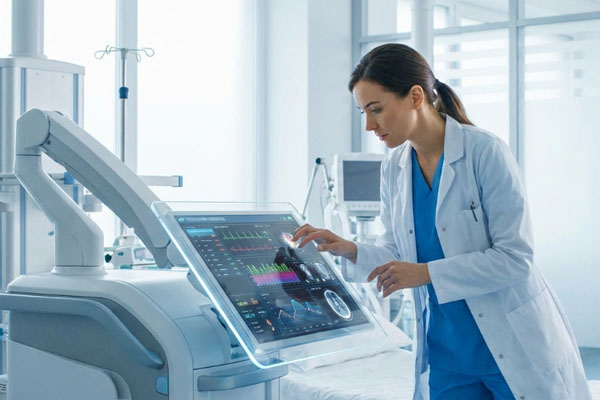
Selecting a capacitive ESP Touchscreen allows you to implement intuitive multi-touch gestures like pinching, swiping, and rotating. These gestures are essential for modern user expectations and can significantly improve the navigation of complex menus. Resistive screens generally do not support these interactions, limiting your UI to simple button presses.
Why is multi-touch essential for a modern UI?
You want your product to feel like a premium smartphone to ensure user satisfaction. Here is the deal:
- Pinch-to-Zoom: Crucial for viewing detailed maps or technical diagrams on small screens.
- Swipe Navigation: Allows for faster menu transitions compared to tapping “next” buttons.
- Rotation: Helpful for aligning visual data or 3D models within an HMI application.
How does touch resolution impact gesture accuracy?
The “report rate” of your touch controller determines how smooth your gestures will feel to the user. Look:
- High Sensitivity: A higher resolution touch grid detects small finger movements more accurately.
- Filtering: Good controllers filter out electrical noise to prevent erratic cursor movement.
- Reporting Speed: Aim for at least 100 reports per second for a lag-free gesture experience.
Key TakeawayChoose a capacitive panel with multi-touch support if your application requires zooming, panning, or advanced navigation.
| Feature | Gesture Support | User Experience | |
|---|---|---|---|
| Tap/Click | Yes (All types) | Basic Navigation | |
| Pinch/Zoom | Yes (Capacitive) | Advanced Data View | |
| Swipe/Flick | Yes (Capacitive) | Rapid Content Scrolling |
Multi-touch capability is often the deciding factor in whether an interface feels modern or outdated to the end-user.
How to optimize the ESP Touchscreen software experience?
You can optimize the ESP Touchscreen software experience by using lightweight graphics libraries like LVGL and offloading processing tasks to both CPU cores. Efficient memory management is the key to achieving a high frame rate and a responsive touch layer. If you overload the processor with heavy assets, the touch response will lag, frustrating the user.
Why is LVGL the preferred library for ESP32?
You should use LVGL because it is optimized for embedded systems with limited RAM. Think about it:
- Widget Variety: It offers pre-built buttons, charts, and sliders that are easy to customize